
Step-by-step guide
How to add translated subtitles to a video
No subtitle file needed: Video Voice Translate listens to the video, writes the subtitles and translates them into your language. Edit, style and export in a few taps.
 Free to try · No watermark
Scan with your Android phone to install
- No subtitle file needed
- 130+ languages
- Burned-in, switchable or SRT
- No watermark
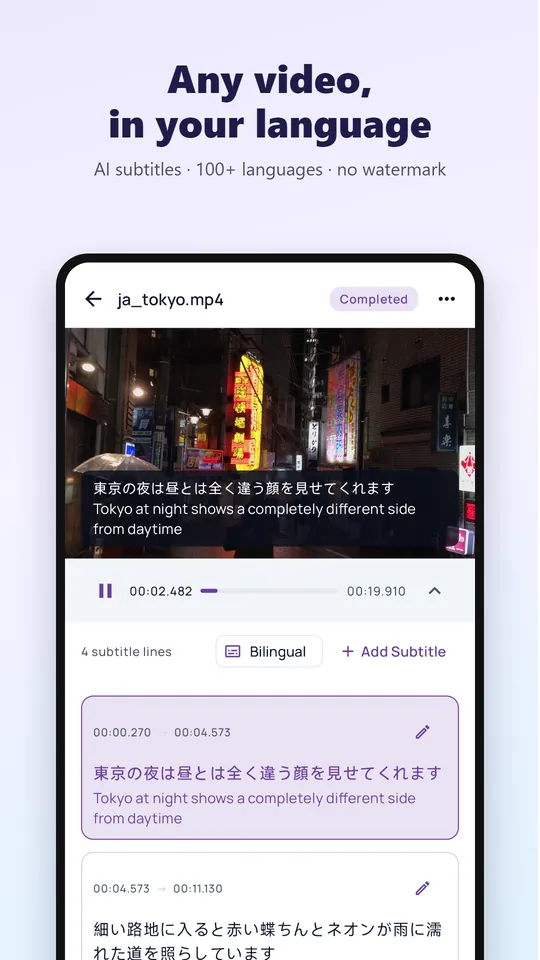
Choose how your subtitles appear
- Bilingual: the original and the translation together
- Translation only: a clean single line in your language
- Original only: perfect subtitles in the spoken language
Pick the export that fits
- Burned-in: styled subtitles that show on every player and social app
- Switchable: viewers turn the subtitles on or off
- SRT file: use the subtitles in any player or video editor
- Every export is clean, with no watermark
Already have a subtitle file?
Translate .srt and .vtt files in your browser with our free online subtitle translator. See how to translate an SRT file.
Add translated subtitles in 4 steps
Choose a video
Tap video translation and pick a video, or share one or several from your gallery, WhatsApp or Telegram.
Pick the languages
Leave the spoken language on Auto and choose the language you want your subtitles in. We let you know when they are ready.
Edit the subtitles
Watch with the subtitles and fix, split, merge or add lines in the editor.
Export
Save the video with burned-in or switchable subtitles, export an SRT file, or turn it into an AI voice-over.
Frequently asked questions
How do I add subtitles to a video in another language?
Pick the video in Video Voice Translate and choose your language. The app creates translated subtitles from the speech, and you save the video with them in a few taps.
What is the difference between burned-in and switchable subtitles?
Burned-in subtitles are part of the picture, so they show everywhere. Switchable subtitles can be turned on or off by the viewer.
Can I edit the translated subtitles?
Yes. The subtitle editor lets you fix any line, split or merge lines and add new ones before you export.
How long can the video be?
With VIP, up to 3 hours per video and 10 videos a day, with priority processing.
Watch your next video in your language
Join more than a million people who use Video Voice Translate. Free to try, no sign-up, no watermark.